Welcome animation
Lit dials and a slow sweep of the needles when you open the app. Reduced motion is respected.
Set a gauge for a feeling or count down to a date, then choose what you share.
Preview app · Install directly from this website.
On iPhone or prefer your browser? Open the web app ↗
Six widgets keep your latest readings on your home screen, including a family board for up to four gauges and a stack you swipe through. Tap a widget to open that gauge. Larger widgets add −10, +10 and three one-tap feelings. Each one can follow your gauge’s look, or have its own theme, dial shape and needle.
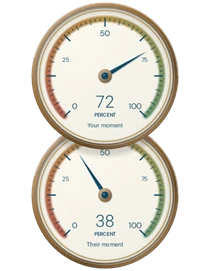
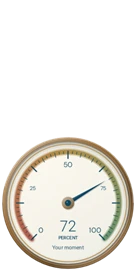
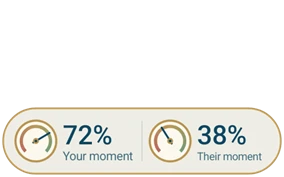
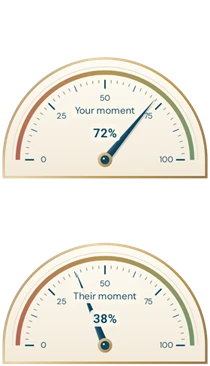
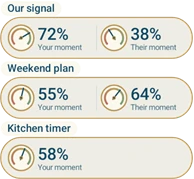
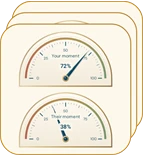
Sample readings, shown at the same scale
Adding one: touch and hold an empty spot on your home screen, choose Widgets, then Gauge & Gear. Or open the app and choose Add home-screen widget. Every widget can be resized. The four single-gauge widgets also have settings for their gauge, layout and look.
Lit dials and a slow sweep of the needles when you open the app. Reduced motion is respected.
You set a feeling or a personal value. A countdown follows time. A short guide explains the difference and how sharing works.
Returning users see the welcome once each day. Skip it immediately or turn it off in Settings. Widget taps and invitations go straight through.
Already have the app? Install this version over it to keep your settings.
Tap the download button on your Android phone, then open the file from your browser’s downloads.
If Android asks, open Settings and allow your browser to install this app. Install Gauge & Gear, then turn that permission back off. Keep Play Protect enabled.
Open Gauge & Gear and sign in with your existing account, or create one. Your saved gauges will be there.
When you are signed in, it appears on your first normal opening of the day. Choose Skip or Open my gauges immediately. Turn it off under Settings → Daily welcome. An invitation or a widget opens its destination directly.
No. The needles in the welcome are decoration, not readings. You choose your own signal in the controls; the app does not guess how you feel. Date countdowns and Time for Us timers follow the schedule you set.
It’s the Android app’s installation file. This preview is distributed directly here, rather than through Google Play. It won’t install on an iPhone, iPad or Windows PC; use the web app on those devices.
Yes. Open your gauge, choose Customize gauge look, then select a round or half dial, finish and needle. Your saved look follows your account across the app, web and widgets. A widget can also have its own look.
After signing in, touch and hold an empty space on your Android home screen, choose Widgets, then find Gauge & Gear. Add a widget and choose the gauge and style you want.
For this preview, download newer versions from this page and install them over the existing app. Updates are not installed automatically. If Android reports a conflict, keep your existing app installed and check that you downloaded the file from this page.
No. Create a digital gauge in the app and invite your partner. An account and internet connection are needed to save and share signals. A physical meter is optional.
Try the direct APK link in Chrome on your Android phone. Check your Downloads folder before tapping again.